What to do with that new iPhone/iPod you just got

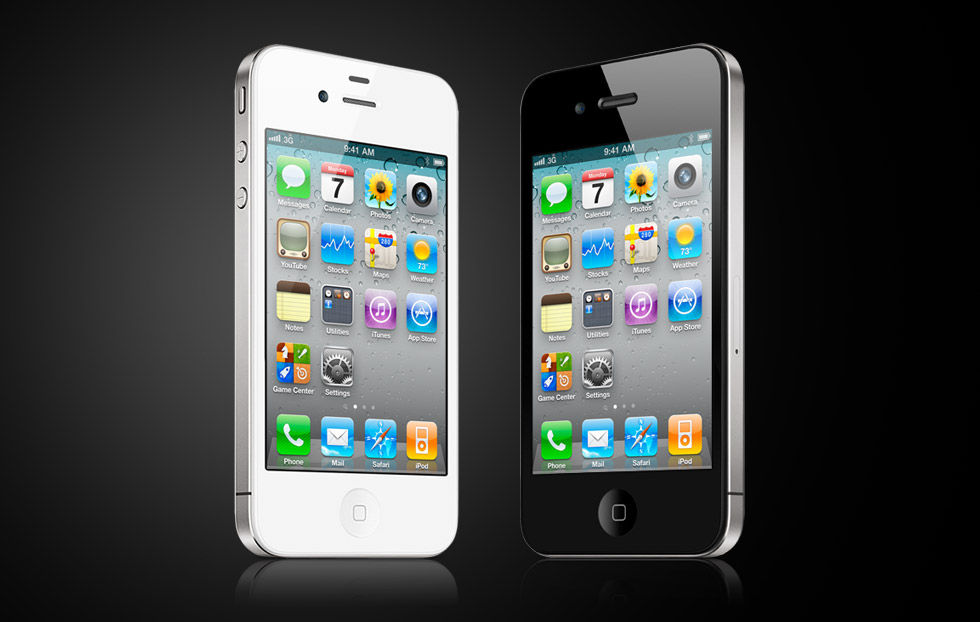
So you got a new iPhone or iPod for the holidays! Great! By now you should have had time to play around with it and you want to know what you should do next! Well here is what you should do in terms of apps,music,photos and more. So let’s get started.

Apps

Here are some of the Apps you should get for your iPhone or iPod Touch.

1. Facebook –

The king of the social networks. As horrible as this app is to some people I don’t find it that bad. Sometimes it will annoy me though. It is better than using the mobile site as you can’t upload all your holiday photos using the web page. [iTunes Link]

2. Twitter –

Twitter is built into iOS 5. You can tweet out website links and photos from inside our native safari or photos app on the device. To do all of this though you need to get the official twitter app. It is a little hurtful on the eyes but the app itself is good and hey it’s free! [iTunes Link]

3. Tiny Wings –

This is one of my favorite iOS games of all times. Tiny wings. You are a bird who has always dreamed of flying. Unfortunately you have tiny wings. Good thing is the world is full of hills. You try and make it through islands by getting air of the hills. It is extremely addicting and I love it and I hope you will to. [$1 – iTunes Link]

Music

One of the great thing about having an iPhone and an iPod is you have music wherever you go. If you don’t have any though then well you are going to be missing out. One of the things every iPhone and iPod can do is download music,tv,and movies straight from the iTunes store along with previous purchases of TV and music. All you need to do is launch the iTunes store, go into the purchases, music, then hit the download all. This will take a while and unless you have iTunes match your mp3’s will NOT download. So to save time you might just want to plug your iPhone/iPod into iTunes and then have all your music.

Photos

The iPhone and the iPod are great way’s to show off your photos. All you need to do is hit the Photo tab when you connect your iDevice to iTunes and check the “Sync Photo’s” checkbox and you are done! Congrats!

iCloud

iCloud iOS 5’s biggest possibly best feature. It is amazing. It alows you to keep Photo’s, Calanders, Contacts, and more synced accross all your devices. Mac or PC. All you need to do is have an Apple ID. Once you do then you can navigate to Settings>iCloud. If you are not signed in go ahead and then select the services you want! Photo Stream stores 30 days or 1,000 new photos. You can clear ALL of them from iCloud.com and soon individually with iOS 5.1.

Play Around!

There are many great amazing things that the iPhone and the iPod touch have to offer and this is just a quick little guide to get you started. I will be posting some fun tips and tricks for all you new iPhone users and some good ones for older iPhone users. If you have a tip or a trick feel free to comment or send me a message on twitter (@matthewjagiela). Enjoy your night and I hope all of you had a wonderful day.
How to enable wifi sync in iOS 5 [Tips]

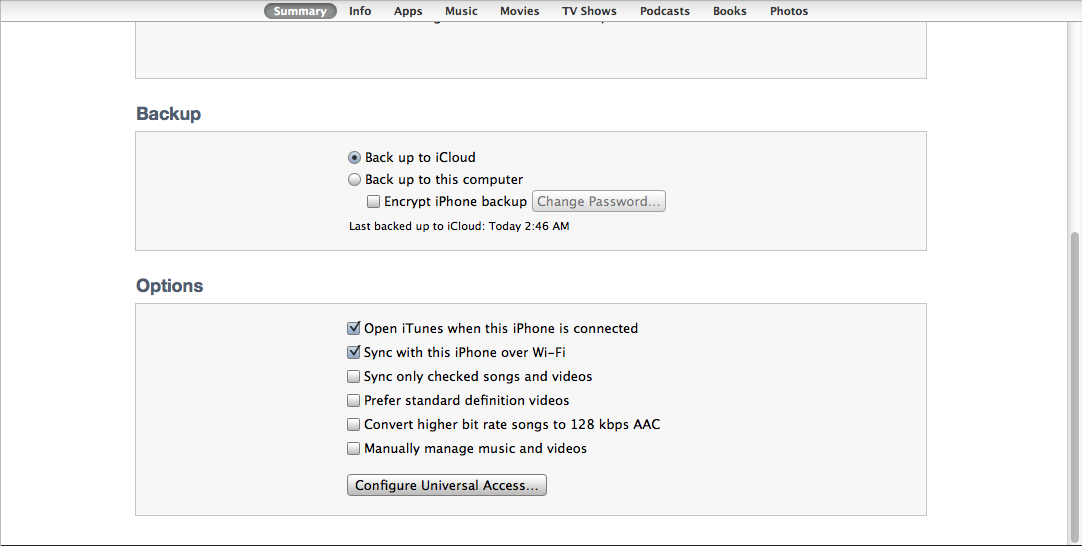
I want to start doing some tips for the new iOS 5 software as some people might not know how to use it as well as they can and can’t take advantage of what they can do! So today’s tip is how to sync over a wifi connection using iTunes 10.5 and iOS 5.

1. Plug in your iOS device into your computer

2. Select your iOS device in the sidebar in iTunes

3. In the check boxes in the summary pan select Sync Over Wifi.

4. Make sure your phone and computer are both on the same wifi network.

5.In iTunes either hit sync or just plug your iPhone into it’s charger at night (make sure your computer isn’t asleep or it WON’T sync)

So there you go! How to make it so you can sync automatically with iTunes when your asleep or over wifi in general.

Airport utility is coming to an iPhone and iPad soon

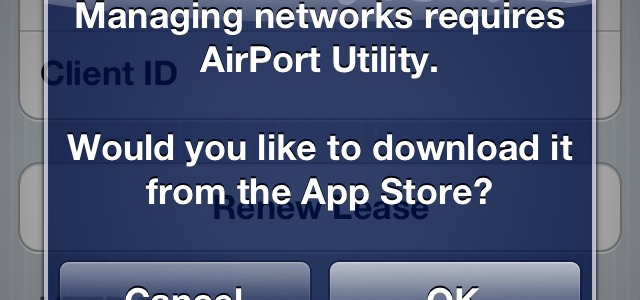
Well Apple is really making it so you do not need a computer to do really anything. Not even to set up and manage your wifi connection anymore. That’s right that little message is in the GM seed of iOS 5. All you need to do if you have the GM installed is go to settings>wifi>the arrow next to your network and then at the bottom hit manage network and then you will see the message. If you say ok then it will try to take you to the App but will fail saying the content is not available. So for everyone who justs wants an iPad or does everything from your iPhone you don’t need a computer for really anything now. Seems cool! Ill post a link whenever we get the app.

Find my Friends will be Great!

One of the things Apple had on stage for iOS 5 today is find my friends an app that will allow you to add and see friends on a map and some people have mixed feelings about this. People saying oh what a great way to stalk people and how will this be useful. Well I will explain it to you in a way that adults can’t. Being a teenage tech reviewer has it’s advantages.

Friends and Family

If you are like me a member of your family could always being away. Like my father he always travels for his job which is exciting but I can never keep track where he is. He has an iPad 2 3G and I am guessing he has an international data plan… If not he will soon. It would be a great time to see if I am in school and where he is in the world. Also for friends. We never ever know where the other one is. If we are actually on our way or what. It would help… Greatly. Just some things to think about it.

Google+ Updates with Hangouts, Messenger, More [Apps]

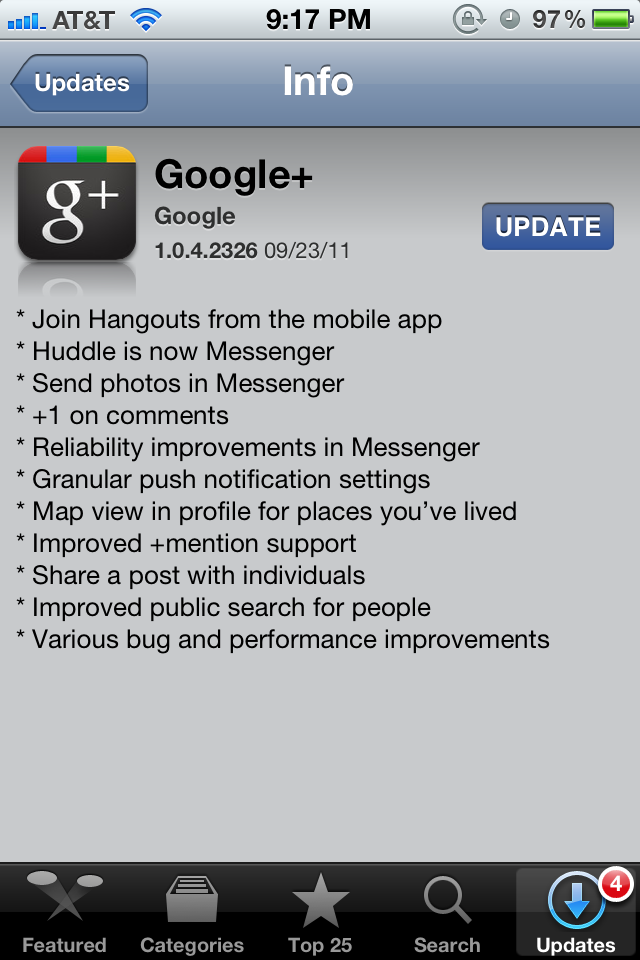
Well after I reviewed Google+ for iPhone and the service basically in general they pushed an update to the iPhone app to reflect some changes on the site itself and some things that some people will be happy too. Here is the full change log!

  • Join hangouts from the mobile app
  • Huddle is now Messenger
  • Send photos in Messenger
  • +1 on comments
  • Reliability improvements in Messenger
  • Granular push notification settings
  • Map view in profile for places you’ve lived
  • improved +mention support
  • Share a post with individuals
  • Improved public search for people
  • Various bug and performance improvements

Now just to be clear you can only join hangouts you can not make one… At least not yet and you need an iPhone 4, an iPod touch 4, or an iPad 2 to join hangouts I’m sure because you need to use the front camera. The app seems to be stable which is more than I can say for the Facebook app.

[iTunes Link – Free]

iMessage to be supported in MAC OS X Lions iChat?

Well here is something that might be unexpected to some but not me. Mac Rumors has found some hidden iChat code showing that iMessage a service that allows iPods, iPhones, and iPads to communicate over the web to the messages app will be coming to the Mac as well in the form of iChat.

@interface IMMessage : NSObject
{
IMHandle *_sender;
IMHandle *_subject;
NSAttributedString *_text;
NSString *_plainBody;
NSDate *_time;
NSDate *_timeDelivered;
NSDate *_timeRead;

The code you see above is the framework in iChat. The code shows the “time delivered” and “time read” which is in the current iMessage. Honestly I think this would be a great idea as you can have all your messages well now everywhere granted it isn’t an SMS and is an iMessage and well everyone I know uses an iPod, iPhone, iPad, or a Mac or all of those so this would be a great idea and I can’t wait to see it become a reality. It may even come with iOS 5 public release which is rumored to be October 10th. iMessage is still in developer preview and has not been released to the public but it does work very well for me.

[ VIA Macrumors]

Developers Can you Subscribe to iTunes Match?


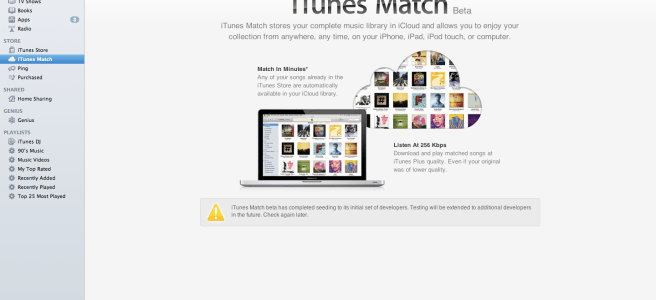
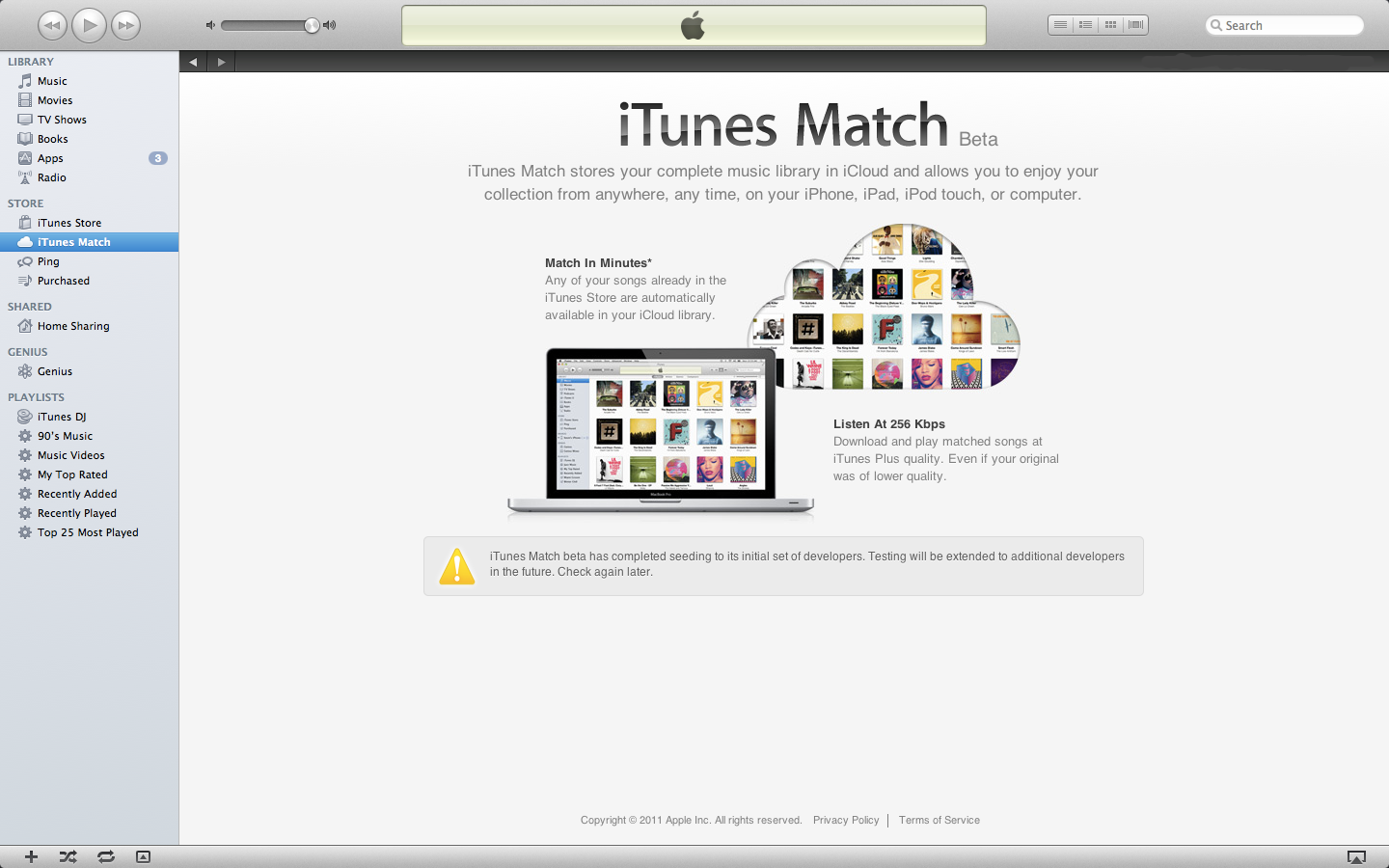
Apple today has extended the number of Developers to subscribe to iTunes match the service which allows people to store imported MP3’s on iCloud and push them to all your devices. Now currently you have to be a developer to take part of this service and you have to currently be an Apple developer with iTunes 10.5 beta 8. Just hit the iTunes match and there will be a subscribe button. Yes you do have to pay the $25 a year when you subscribe and this is a United States only service. Let me know how it is in the comments or on twitter (@matthewjagiela)!

Apple Releases iTunes 10.5 beta 8 iWork beta 3 for developers

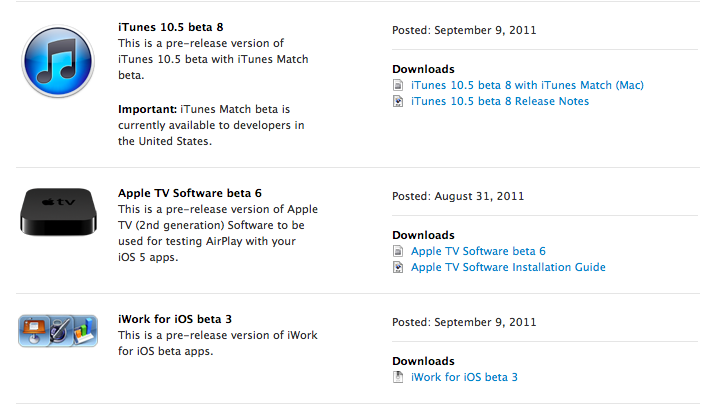
Today on this fine Friday Apple has blessed all of us developers with iTunes 10.5 beta 8 which will allow all of us developers to use iTunes Match the service that allows your imported mp3’s to iCloud and downloads them on all devices. Also Apple has released iWork for iOS beta 3 allowing you to take control of automatically uploading documents to iCloud and accessing them on iCloud.com or vise versa. Release notes after the break!

Continue reading “Apple Releases iTunes 10.5 beta 8 iWork beta 3 for developers”

Have Google Music? Great they just launched a new Web App For iOS!

Today Google has released a new web app for all iOS devices for their music streaming service or locker as some people like to call it. To get to the web app on your iOS device go to music.google.com and you will see the web app.  Please know that it is streaming only you cannot browse music catalogs, or upload music into the app.

Google lets you store 25MB of music in your device cache. Content is streamed from your uploaded music collection. When you open the app you can choose what you want to play and then you are taken to something like the window above.

Google Music is currently an invite service (like everything else Google Does) and is currently free for beta testers.