Apple Could Replace the 30 pin dock connecter for iDevices

Apple could be ready to ditch the 30 pin dock connecter it uses in all of it’s iOS devices. This would make some room for better hardware.

An Updated “micro dock” could make room for bigger batteries, 4G radios, and other components far more important to the iPhone and iPad in a PC free world.

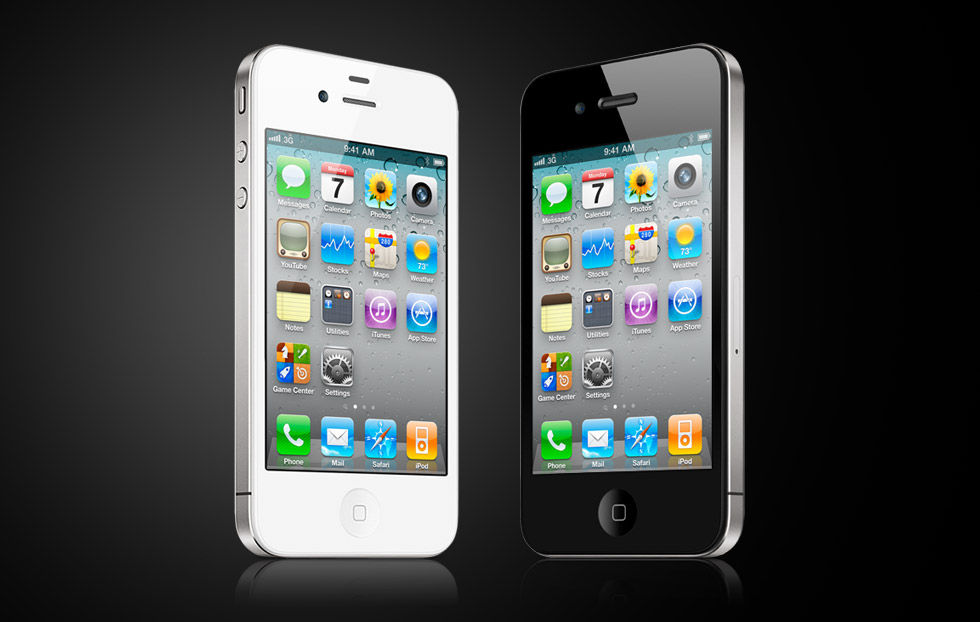
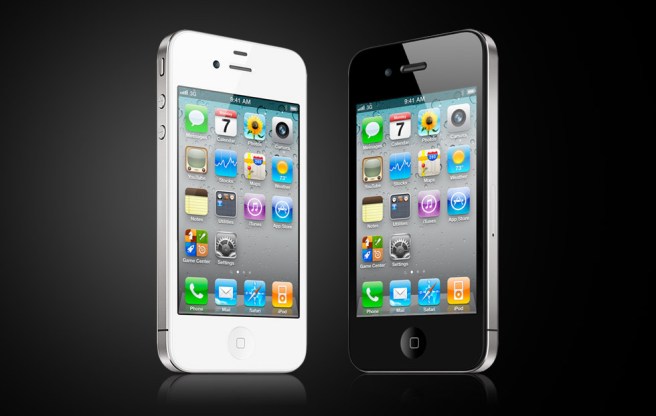
Apple has made some components in their iPhones smaller for thinner designs. Like the micro sim to make a thin design for the iPhone 4 for more hardware improvements and a thinner design. Could we see a smaller dock connecter or even better wireless charging? This could be a problem for some people and case makers as all cases for these products are based around the 30 pin dock connecter.

This comes from popular rumor site iMore.com which has great iOS news and rumors. They are what we are basing the iPad 3 launch date off of. March 9th.

[iMore]

More Renderings of the iPhone SJ Emerge

This slideshow requires JavaScript.

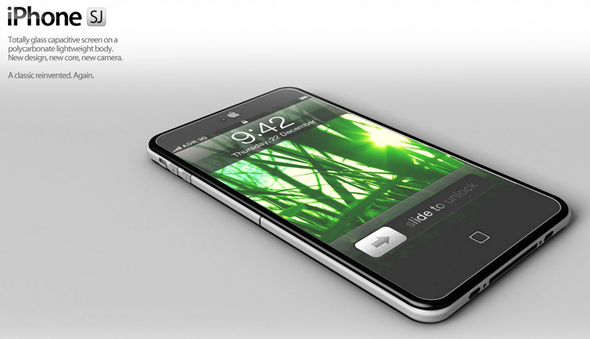
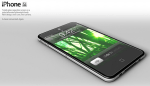
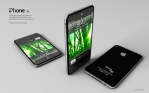
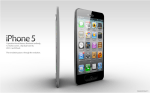
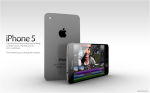
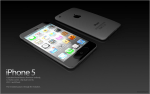
Above are all the images for the iPhone SJ Concept including ones that emerged today. The iPhone Sj concept was amazing concept that I brought to you about a week ago. The concept had gotten so much attention ADR Studios added some new photos [Above] to the collection along with a video! This is what I hope Apple’s sir Jonathan Ives and Apple’s design team is looking at. Well some parts anyways. Full gallery of all the concept images along with the video below!

Gallery:

[ADR Studios]

The iPhone SJ Concept is AMAZING

Today I found this. It’s the iPhone SJ concept. It comes with the rumored 10 megapixel camera and the A6 dual core processor which I had said won’t happen this year. The iPhone 4S is the same design as the old iPhone 4 making us all want something new. Hopefully this is close to something we might get. I love this concept. It looks great. This design calls for a full front glass capactive screen, and a polycarbonate body.  Remember the next iPhone is likely to be called the iPhone 5. Here are the rest of the images for this concept.

[ADR Studios]

What to do with that new iPhone/iPod you just got

So you got a new iPhone or iPod for the holidays! Great! By now you should have had time to play around with it and you want to know what you should do next! Well here is what you should do in terms of apps,music,photos and more. So let’s get started.

Apps

Here are some of the Apps you should get for your iPhone or iPod Touch.

1. Facebook –

The king of the social networks. As horrible as this app is to some people I don’t find it that bad. Sometimes it will annoy me though. It is better than using the mobile site as you can’t upload all your holiday photos using the web page. [iTunes Link]

2. Twitter –

Twitter is built into iOS 5. You can tweet out website links and photos from inside our native safari or photos app on the device. To do all of this though you need to get the official twitter app. It is a little hurtful on the eyes but the app itself is good and hey it’s free! [iTunes Link]

3. Tiny Wings –

This is one of my favorite iOS games of all times. Tiny wings. You are a bird who has always dreamed of flying. Unfortunately you have tiny wings. Good thing is the world is full of hills. You try and make it through islands by getting air of the hills. It is extremely addicting and I love it and I hope you will to. [$1 – iTunes Link]

Music

One of the great thing about having an iPhone and an iPod is you have music wherever you go. If you don’t have any though then well you are going to be missing out. One of the things every iPhone and iPod can do is download music,tv,and movies straight from the iTunes store along with previous purchases of TV and music. All you need to do is launch the iTunes store, go into the purchases, music, then hit the download all. This will take a while and unless you have iTunes match your mp3’s will NOT download. So to save time you might just want to plug your iPhone/iPod into iTunes and then have all your music.

Photos

The iPhone and the iPod are great way’s to show off your photos. All you need to do is hit the Photo tab when you connect your iDevice to iTunes and check the “Sync Photo’s” checkbox and you are done! Congrats!

iCloud

iCloud iOS 5’s biggest possibly best feature. It is amazing. It alows you to keep Photo’s, Calanders, Contacts, and more synced accross all your devices. Mac or PC. All you need to do is have an Apple ID. Once you do then you can navigate to Settings>iCloud. If you are not signed in go ahead and then select the services you want! Photo Stream stores 30 days or 1,000 new photos. You can clear ALL of them from iCloud.com and soon individually with iOS 5.1.

Play Around!

There are many great amazing things that the iPhone and the iPod touch have to offer and this is just a quick little guide to get you started. I will be posting some fun tips and tricks for all you new iPhone users and some good ones for older iPhone users. If you have a tip or a trick feel free to comment or send me a message on twitter (@matthewjagiela). Enjoy your night and I hope all of you had a wonderful day.


New iPhone 5 concept

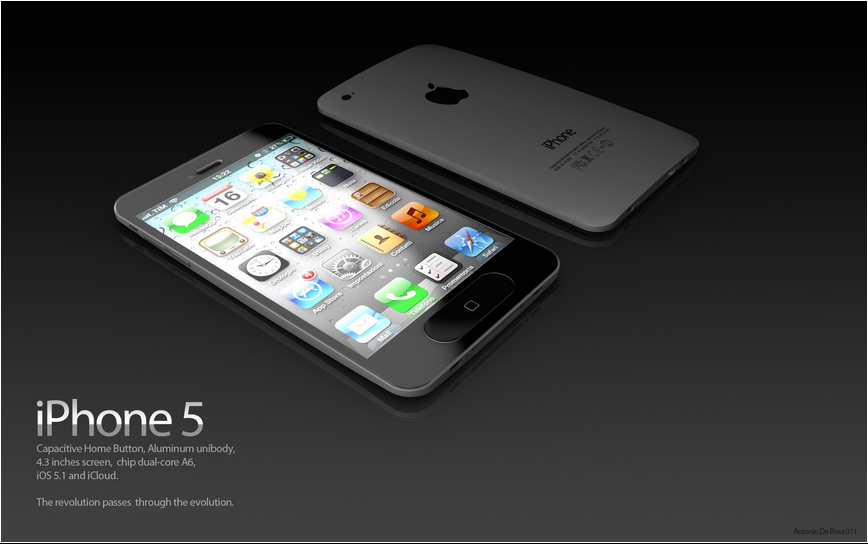
A new iPhone 5 or next generation iPhone concept has arrived and to be honest I don’t love it but at the same time I don’t hate it. We can see the screen is a little larger from the current 3.5″ to a 4.3″ screen. I do like the upgraded screen and the fact the back is no longer glass and seems to be aluminum. I however don’t like the home button that seems to be an enlarged home button. Also the form doesn’t seem the best and the camera looks a little small. This is the design video made by ADR studios.

For hardware there is of course the upgraded screen, new home button which could be capacitive, new A6 chip that will most likely dual core but with upgraded speed. You can read all of our posts about the iPhone 5 by clicking here. More images below

[Vambient, iPhone 5 news]

Gallery (click to enlarge)

How to backup your iOS 5 Device to iCloud [Tips]

Continuing our tips for the all mighty iOS 5 today we are going to be looking at backing up your data to iCloud. Now some 0f you might have done this already and great. We all know iCloud will sync contacts, mail, calendars, documents, and even more. But it can also back up all your application data, where your apps go, your texts, passwords, and more. Like an iTunes backup. Hit the break to find out how to enable it!

Continue reading “How to backup your iOS 5 Device to iCloud [Tips]”

How to enable wifi sync in iOS 5 [Tips]

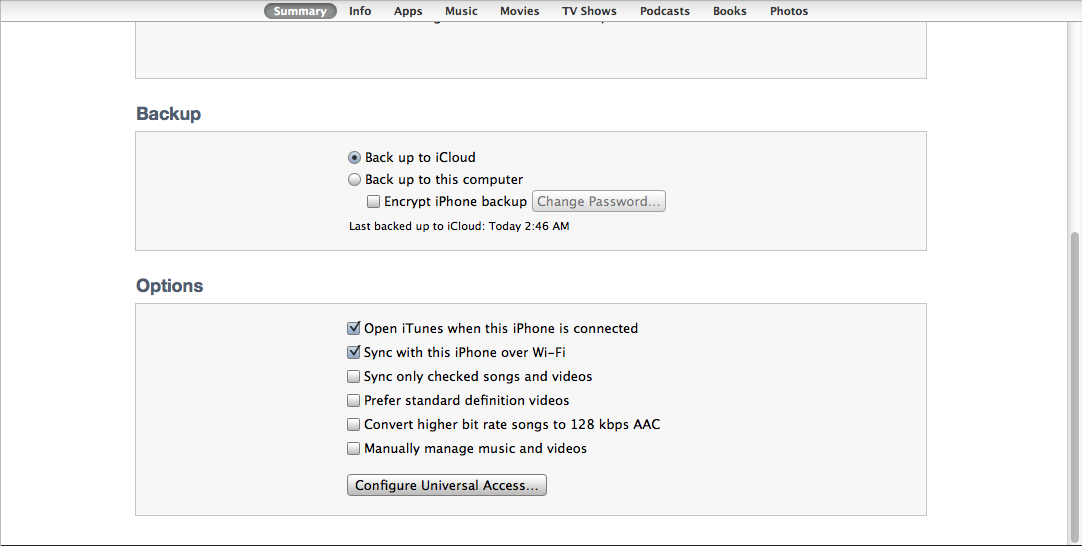
I want to start doing some tips for the new iOS 5 software as some people might not know how to use it as well as they can and can’t take advantage of what they can do! So today’s tip is how to sync over a wifi connection using iTunes 10.5 and iOS 5.

1. Plug in your iOS device into your computer

2. Select your iOS device in the sidebar in iTunes

3. In the check boxes in the summary pan select Sync Over Wifi.

4. Make sure your phone and computer are both on the same wifi network.

5.In iTunes either hit sync or just plug your iPhone into it’s charger at night (make sure your computer isn’t asleep or it WON’T sync)

So there you go! How to make it so you can sync automatically with iTunes when your asleep or over wifi in general.